
Introduction
Google has a requirement when submitting apps to the Google Play store that request location in the background. This includes any app that includes the Larky nudge® code library and may also be required for ATM or branch location functionality in your mobile banking app. You can read the full details here but in general there is a Location permissions declaration form that must be completed as part of the process.
As your partner we are committed to helping you with this process. We have developed this guide that will walk you through the process and provide you with the details you will need when submitting the form.
The key requirements for the new policy require app publishers to:
- Have the financial institution's privacy policy clearly labeled and include details on location data usage
- Provide information about how the app uses background location permissions
- Display a prominent in-app disclosure to explain what location data is used, and how
- Provide a video demonstration of location-specific functionality in the app
- Complete the Permissions Declaration Form
Have questions? Please contact us! support@larky.com
Step 1: Confirm the client's Privacy Policy includes details on location data
A required element of a valid privacy policy is the inclusion of language that specifically mentions the use of location data. We have a guide intended for the financial institution that covers this in detail. For a timely app submission, it's important that the privacy policy be checked early in the process, in case it needs to be updated. Larky is happy to help the financial institution work through this step.
Step 2: Create the video demonstration
A key requirement for completing the Permissions Declaration Form is the inclusion of a video that demonstrates certain app elements. Creation of this video is normally handled by the mobile banking technology partner. Larky is happy to provide assistance in this process, if that is required.
One element the video must include is the app displaying a prominent in-app disclosure explaining to users why they are being prompted to share their location information. Starting with Version 2.0 of the nudge® code library we provide such a disclosure, with default text that covers the key required points. This text can be customized by the client, if needed. See this article for more details.
Alternatively, as the application developer, you can place code before your initialization of the nudge® code library that displays a dialog displaying the appropriate messaging. In this case, you will need to determine if location permission has already been granted (or denied) so that the dialog is not shown every time the app loads and the nudge® code library is initialized. That conditional check is necessary to prevent a negative client experience of seeing the dialog each time the app launches.
Another requirement of the video is inclusion of the actual location-specific functionality in action. In the case of an application bundling the nudge® code library for purposes of sending messages to users, this could just be a display of a push notification being received. The easiest way to accomplish this is to create a geo-based nudge® message for the location where the video is being created. When the app is installed (as part of the video flow), that nudge should be displayed immediately after granting location permission, thus satisfying the requirement of demonstrating the functionality.
Here is a sample nudge you could create, that provides a real use-case for granting location permission:
Title: Important Branch Announcement
Body: The branch you are at has limited lobby hours. Our drive-up ATM is available. Tap to find a nearby branch with in-person services.
Additional video tips:
- Length: 30 seconds or shorter
- Format: YouTube link preferred or an mp4 uploaded to Google Drive
- Demonstrate any other background location features that may exist and the required steps to encounter and enable these features in-app
Full video requirement details are available in Google’s Play Console Help.
Sample Video
Step 3: Update the App content section in Google Play Console
Log in to your Google Play Console account and select the app you want to update from the All apps page. Go to the App content page located under the Policy section at the bottom of the menu:
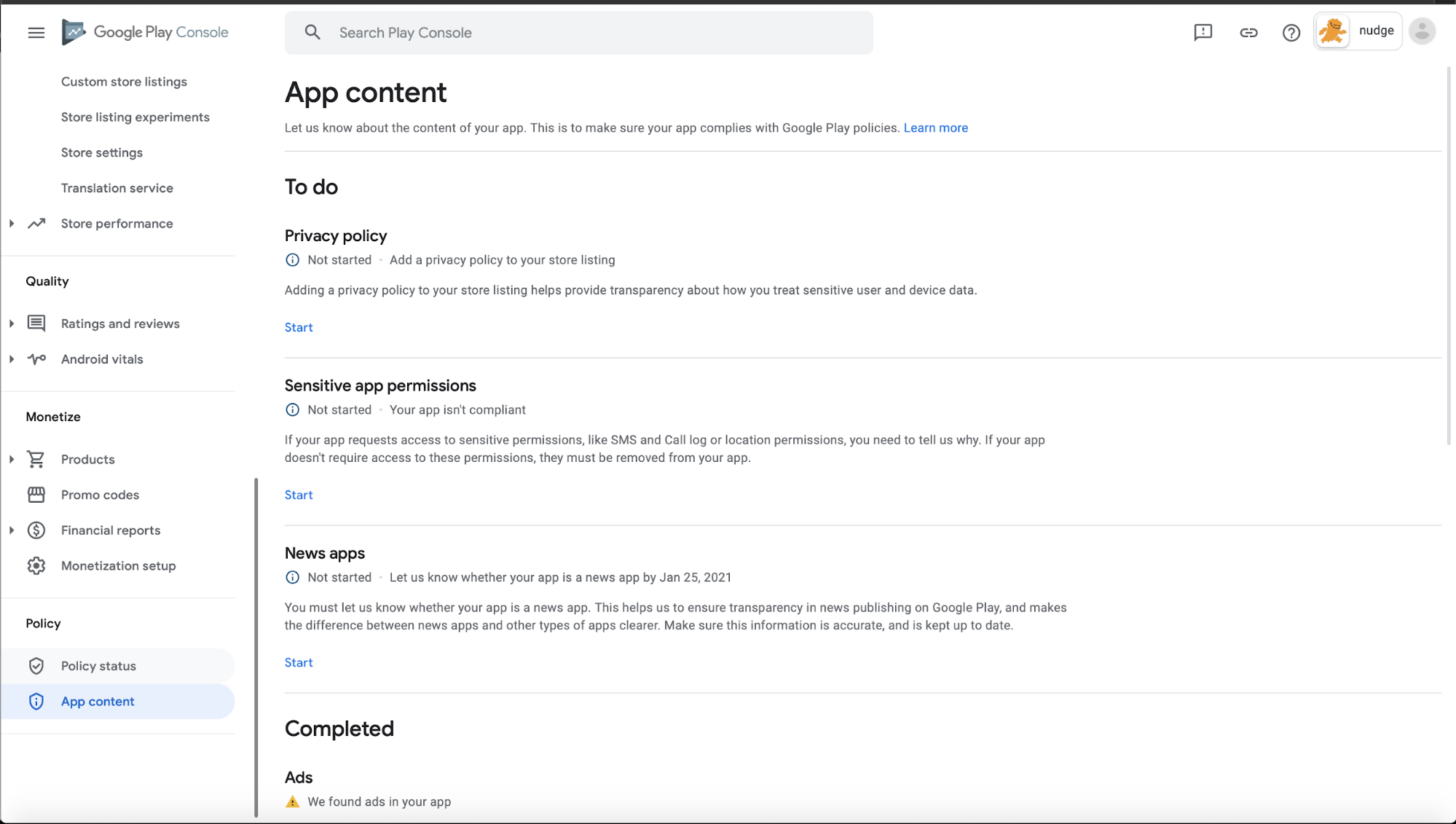
Click the Start button under the Sensitive app permissions section to open the Permissions declaration form.
Note: you may be prompted to complete the App access section before continuing with the Permissions declaration form process.
Step 4: Complete the Permissions declaration form
Click Start in the Locations permissions section of the Permissions declaration form to open the Location permissions dialog:
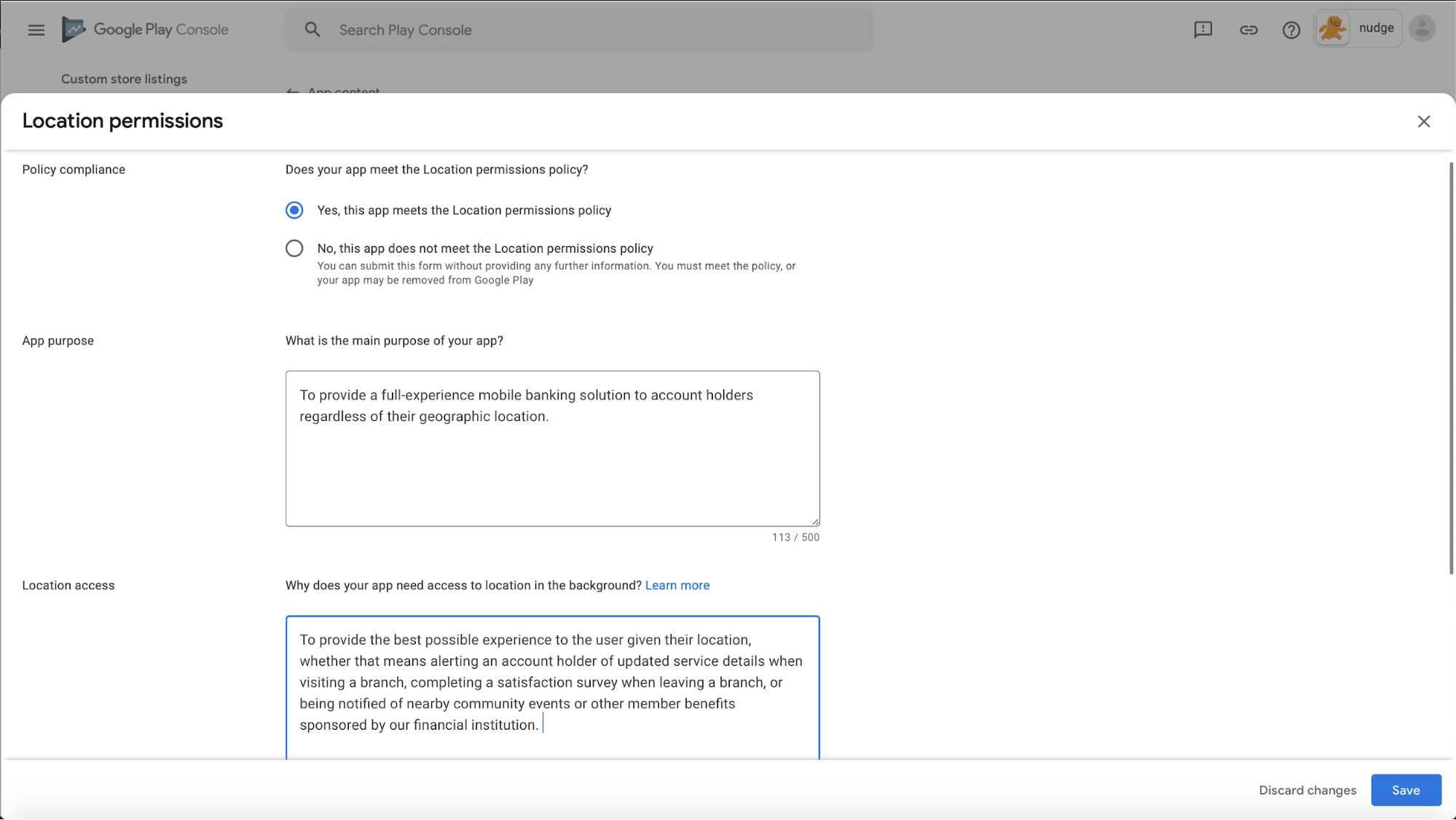
For Policy compliance, select Yes, this app meets the Location permissions policy
Supply a short description in the App purpose section. Here is some sample content you can adapt, if desired:
To provide a full-experience mobile banking solution to account holders regardless of their geographic location.
Similarly, provide an explanation of why the app requires background location in the Location access section. Here is some sample content:
As part of its core functionality, enabled by default for all members, the mobile banking app includes a comprehensive member communication mechanism. This provides the best possible messaging experience to the member, sometimes based on their location, whether that means alerting an account holder of possible fraud activity reported near them, updated service details when visiting a branch, completing a satisfaction survey when leaving a branch, or being notified of nearby community events or other member benefits sponsored by the financial institution.
Finally, provide the link to the video you created earlier in the Video Instructions section.
Click Save to submit the form.
Step 5: Submit your app!
Roll out your new update by creating a new release in the Production section, as per your normal process.
If at any point in this process you have questions or need help in completing any step, please contact us at support@larky.com and we will be happy to assist you!
Comments
0 comments
Article is closed for comments.